

Use the calendar
Choose Calendar in the sidebar. The Day view has a column for each person on the rota; the Week view has a column for each day. Lighter shading shows when people are working, and a red line shows the time now.
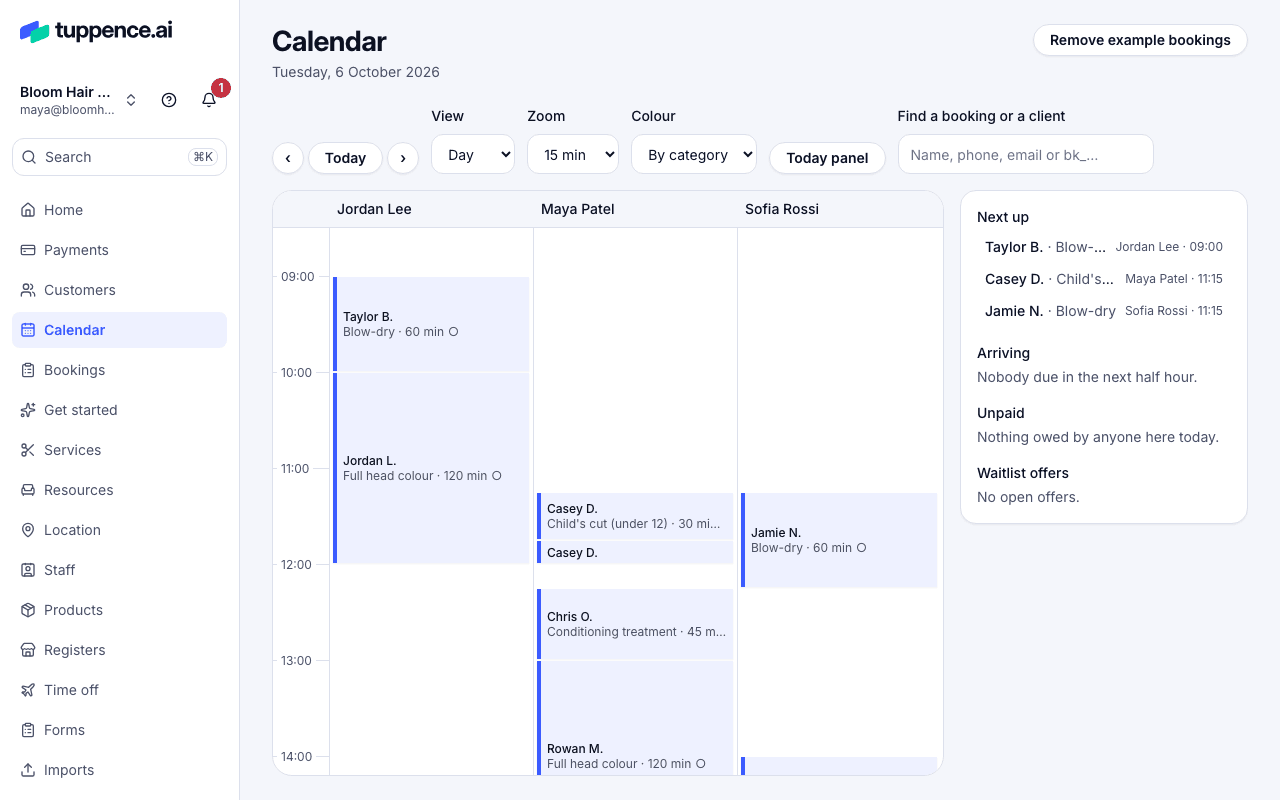
A staff login sees only their own column and bookings. An analyst can look but not change anything.
Move around
Section titled “Move around”- ‹ and › go back and forward a day (or a week), and Today comes back to today.
- View switches between Day and Week. In the week, Who chooses Everyone or one person.
- Zoom sets how much each row is: 5 min, 15 min or 30 min.
- Colour shows bookings By category (each service’s colour) or By status.
- With more than one location, Location chooses which one you’re looking at.
Read a booking
Section titled “Read a booking”Each booking shows the client’s first name and initial, the services and the minutes. It may also show:
- NEW: the client’s first visit.
- BLOCKED: a client you’ve blocked.
- A no-show count, such as 2× no-show.
- £$€ paid, ½ deposit paid, or ○ nothing paid yet.
- ✎: there are notes.
- ?: a request waiting for you to approve.
Choose a booking to open it in a panel beside the calendar.
The Today panel
Section titled “The Today panel”In the day view, Today panel shows:
- Next up: each person’s next visit.
- Arriving: clients due in the next half hour.
- Unpaid: visits that have started or finished and aren’t paid.
- Waitlist offers: times offered to clients on the waitlist.
Find a booking
Section titled “Find a booking”Type a name, phone number or email in Find a booking or a client. Choosing a client jumps to their next booking, or their latest if they have nothing coming up.
Keyboard shortcuts
Section titled “Keyboard shortcuts”| Key | Does |
|---|---|
| [ and ] | The previous or next day (or week) |
| t | Today |
| / | Jump to the search |
| Arrow keys | Move around the grid |
| Enter | Open a booking, or the menu for an empty time |
| Esc | Close the menu |