

Choose your notifications
Every alert lands in your inbox, the bell at the top of the sidebar. You choose which alerts also reach you by email or as a push notification. Your choices apply only to you, in this business.
-
Choose Settings in the sidebar, then Notifications.
-
For each kind of alert, tick Email, Push or both.
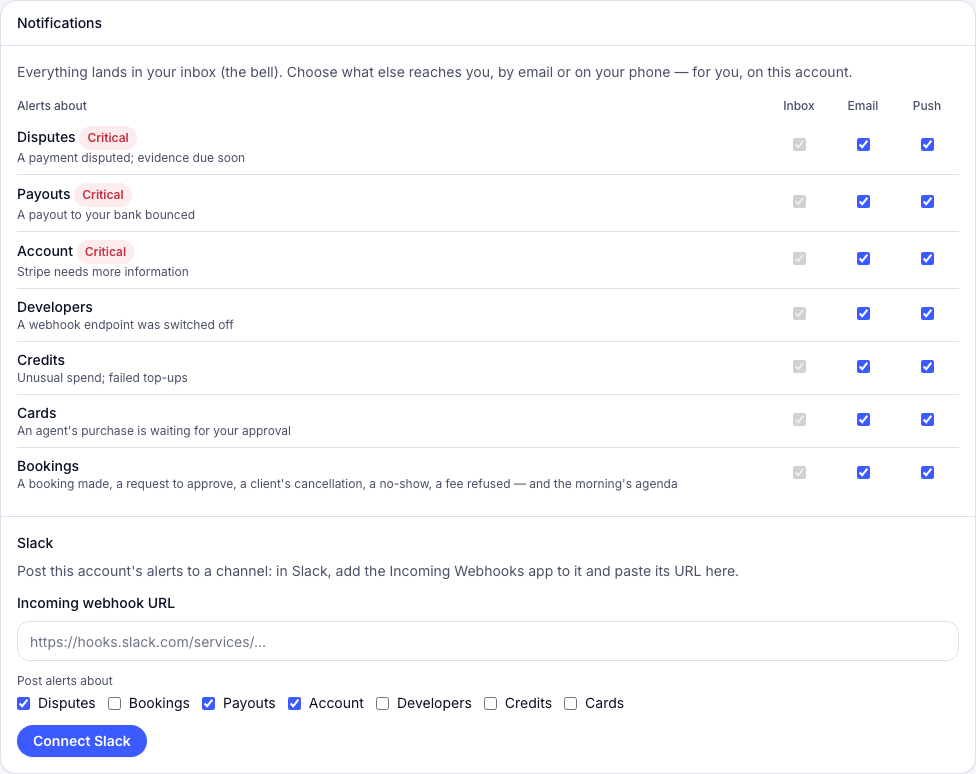
It saves as you tick.
- Tap Account, then Notifications.
- For each kind of alert, turn on By email or On this phone.
The alerts
Section titled “The alerts”| Alerts about | When |
|---|---|
| Disputes | A payment is disputed; evidence is due soon. |
| Bookings | A booking is made, a request needs approving, or a client cancels or doesn’t come. Also the morning’s agenda. |
| Payouts | A payout to your bank bounced. |
| Account | Stripe needs more information. |
| Developers | A webhook was switched off. |
| Credits | Unusual spend, or a top-up that failed. |
| Cards | A purchase is waiting for your approval. |
Post alerts to Slack
Section titled “Post alerts to Slack”An owner, admin or manager can send the team’s alerts to a Slack channel.
- In Slack, add the Incoming Webhooks app to the channel and copy the URL it gives you.
- In Settings, then Notifications, find Slack and paste it into Incoming webhook URL.
- Under Post alerts about, tick the kinds of alert to post.
- Choose Connect Slack, then Send a test post to check it works.
To stop, choose Disconnect.