

Dashboard tour
The dashboard has a sidebar on the left and the current page on the right. On a phone, tap the menu button at the top left to open the sidebar.
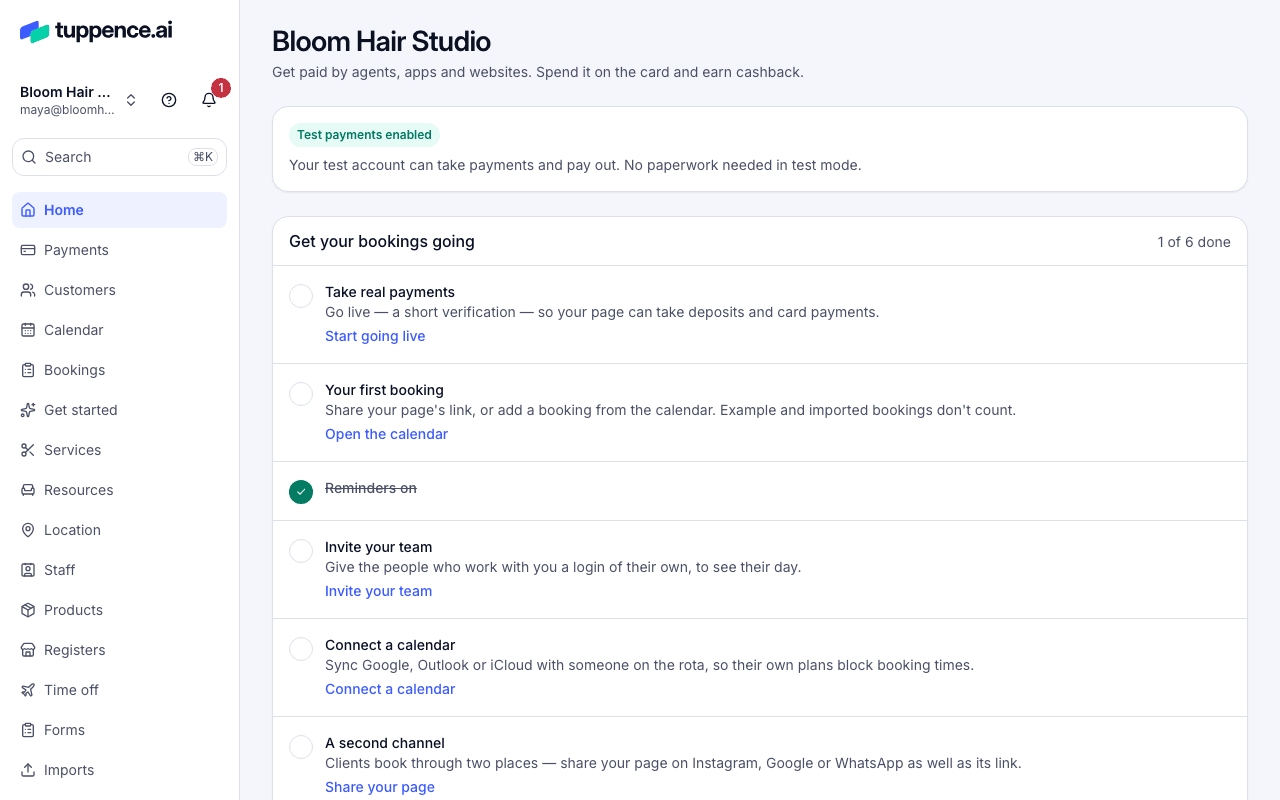
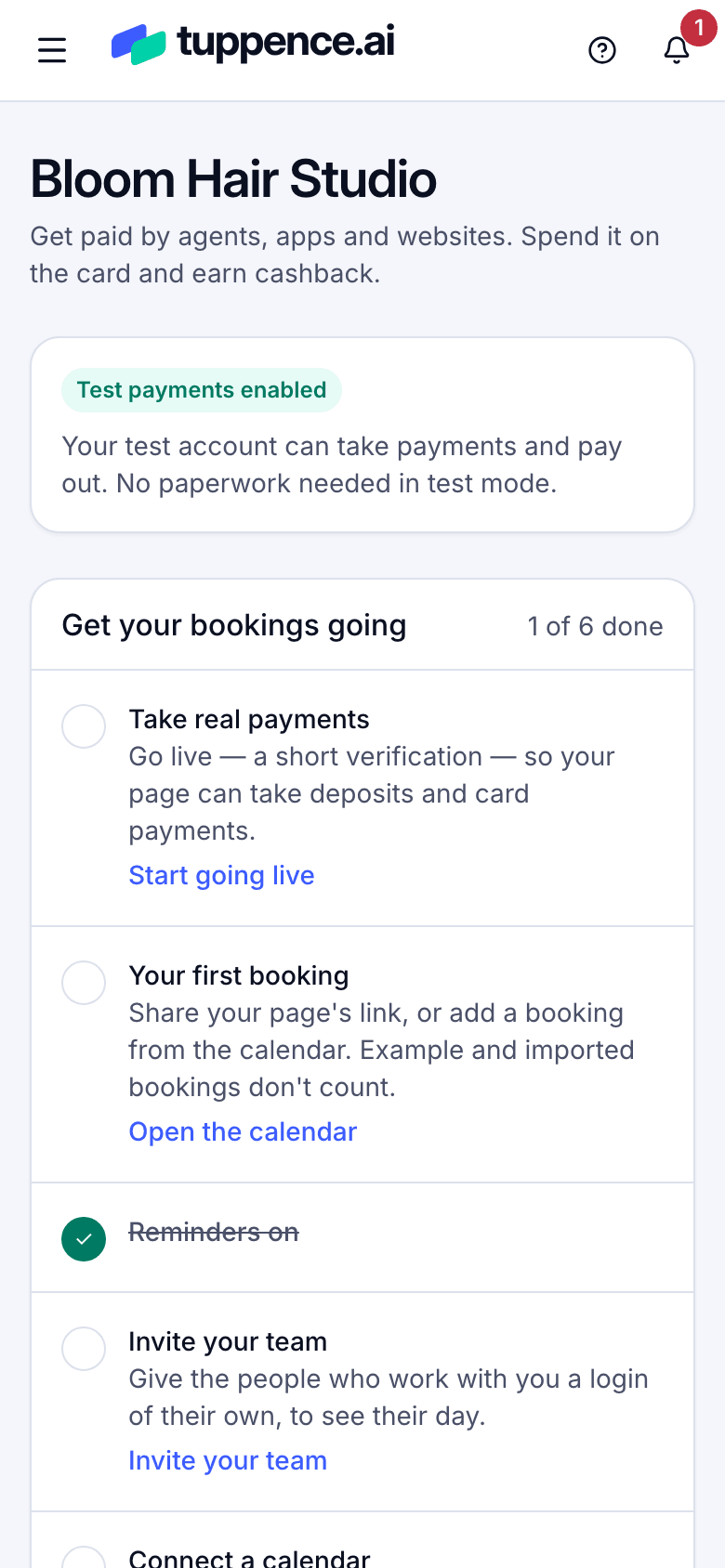
The account menu
Section titled “The account menu”Your business’s name is at the top of the sidebar, with your email and role underneath. Choose it to:
- switch to another business you belong to, under Accounts;
- add a business with New account;
- write to us with Get help;
- Sign out.
The bell beside it holds your alerts. See Choose your notifications.
Search
Section titled “Search”Choose Search, or press ⌘K (Ctrl+K on Windows), to jump to any page by name. It also finds customers and payment links by the start of their name, and payments, refunds, payouts and disputes by ID. See Find a payment.
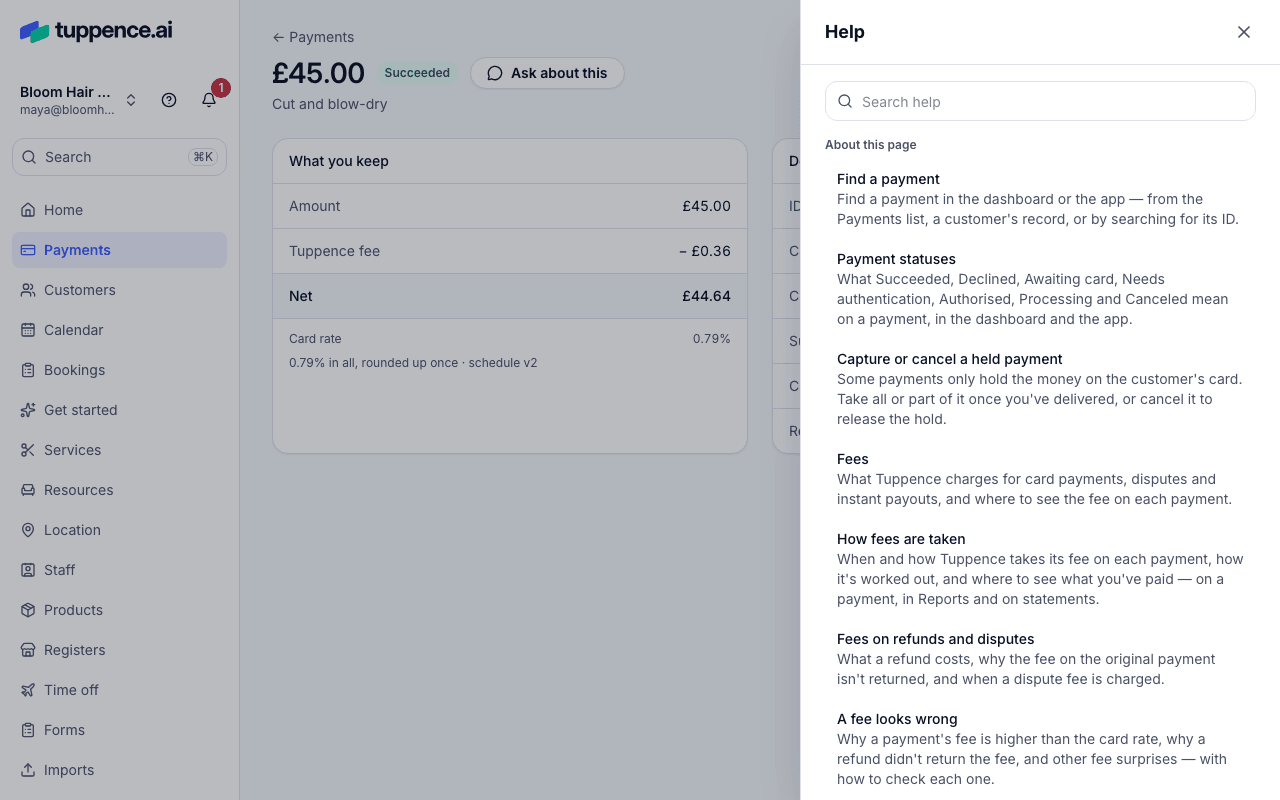
Choose ? at the top of the sidebar to open help beside the current page. It lists articles about that page. Search help searches all of them.
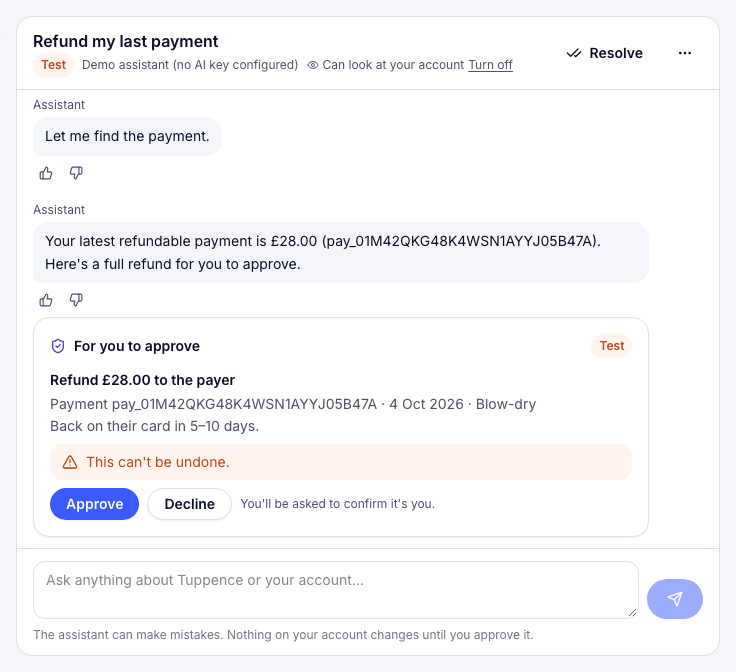
To ask a question, choose Support in the sidebar, then Send us a message, or Ask the assistant in the panel. The assistant answers from these articles and your account. It can also act for you, such as making a refund, but nothing changes until you choose Approve. Your conversations, and the team’s replies, are under Support → Messages.
Home shows where your account stands, then three figures:
- Available: money that has cleared and can be paid out;
- Pending: money still clearing;
- Last 7 days: what you took this week, with a small chart.
Below are your Recent payments and, until you’ve finished it, the Get started checklist. A red banner at the top shows when a dispute needs an answer.
The sidebar
Section titled “The sidebar”The top of the sidebar is the same for everyone:
| Page | What it’s for |
|---|---|
| Home | Where your account stands, and what to do next. |
| Payments | Every payment, newest first, and Disputes: payments a customer’s bank has taken back. |
| Balance | What you hold, and your payouts. |
| Customers | The people who pay you, and their history. |
| Reports | Totals by day, monthly statements, downloads, and how your bookings are doing. |
Below that, Products has a section for each product your business uses. Choose a section’s name to open or close it:
| Section | What’s in it |
|---|---|
| Bookings | Set up bookings, Calendar, All bookings, Services, Staff, Booking page, Marketing and Vouchers & packages. |
| Point of sale | Products, Registers and Sales, for the till. |
| Billing | Payment links, Subscriptions and Credits. |
| Spend | Cards and Cashback. |
| Connect | Connected accounts, Fees & transfers and Platform settings, if you run a platform. |
Related pages are tabs across the top of the page. For example, Staff has Staff, Time off and Commission.
More products lists what your business doesn’t use yet. Anyone can look at them, and an owner or admin can add one to everyone’s sidebar. To choose which sections show, go to Settings, then Products. When you start using a product (such as creating your first API key), its section appears automatically.
To keep a page at the top, point at it in the sidebar and choose the pin. Pinned pages show under Shortcuts.
At the bottom are Developers (keys, webhooks, events and logs, if you build on the API), Settings (your business, login and two-factor, notifications, branding, locations, team and audit log), Support and Mode, which switches between Test and Live. See Test mode and live mode.