

Set up two-factor authentication
With two-factor on, signing in and changing where payouts go both ask for a code from your phone as well as your password. It’s optional but recommended. You need it to create live API keys or to hand the account to a new owner.
-
Choose Settings in the sidebar, then Login & security, and scroll to Two-factor authentication.
-
Choose Set up two-factor. To confirm it’s you, we email you a 6-digit code. Enter it in Code from the email and it checks itself. (If you confirmed a code in the last few minutes, we skip this.)
-
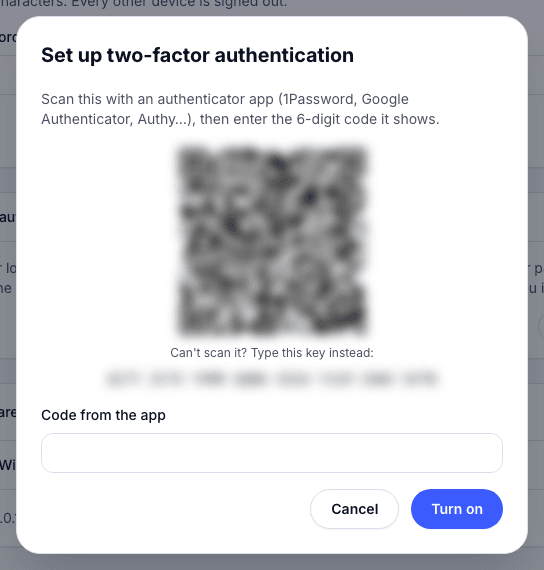
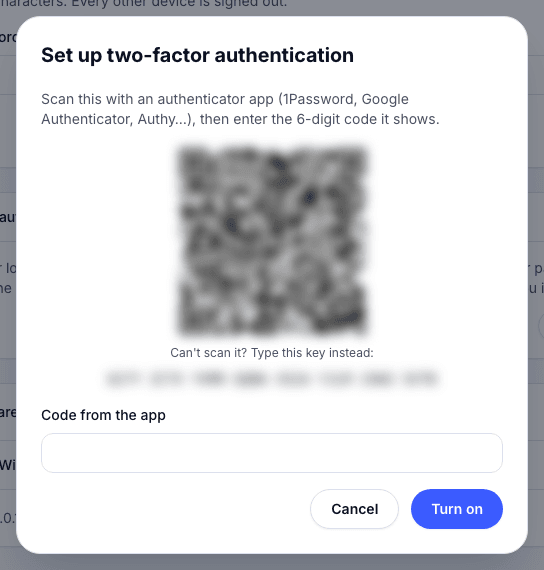
Scan the QR code with an authenticator app such as 1Password, Google Authenticator or Authy. Can’t scan it? Type the key shown under it into the app.
-
Enter the app’s 6-digit code in Code from the app. Two-factor turns on as soon as you enter the sixth digit.
-
Save your recovery codes: choose Copy codes or Download, keep them somewhere safe, then choose I’ve saved them.
To use text messages instead, choose Use text messages and enter the code we email you. Enter your Mobile number, choose Text me a code, then enter the Code from the text. (This option appears only where we can send texts.)
- Tap Account, then Two-factor.
- Tap Use an authenticator app, enter the code we email you to confirm it’s you, then tap Open authenticator app to add Tuppence to it.
- Enter the Code from the app and tap Turn on two-factor.
- On Save your recovery codes, tap Share or save, keep them safe, then tap I’ve saved them.
Once it’s on
Section titled “Once it’s on”Login & security shows Two-factor authentication as On, and how many of your 10 recovery codes are left. From there you can choose:
- Add an authenticator app or Add codes by text, to have both.
- New recovery codes, to replace the old ones (they stop working).
- Turn off, after confirming with a code. We email you to confirm.
The Team page shows each member’s two-factor as On or Off.